



Let your members post by email
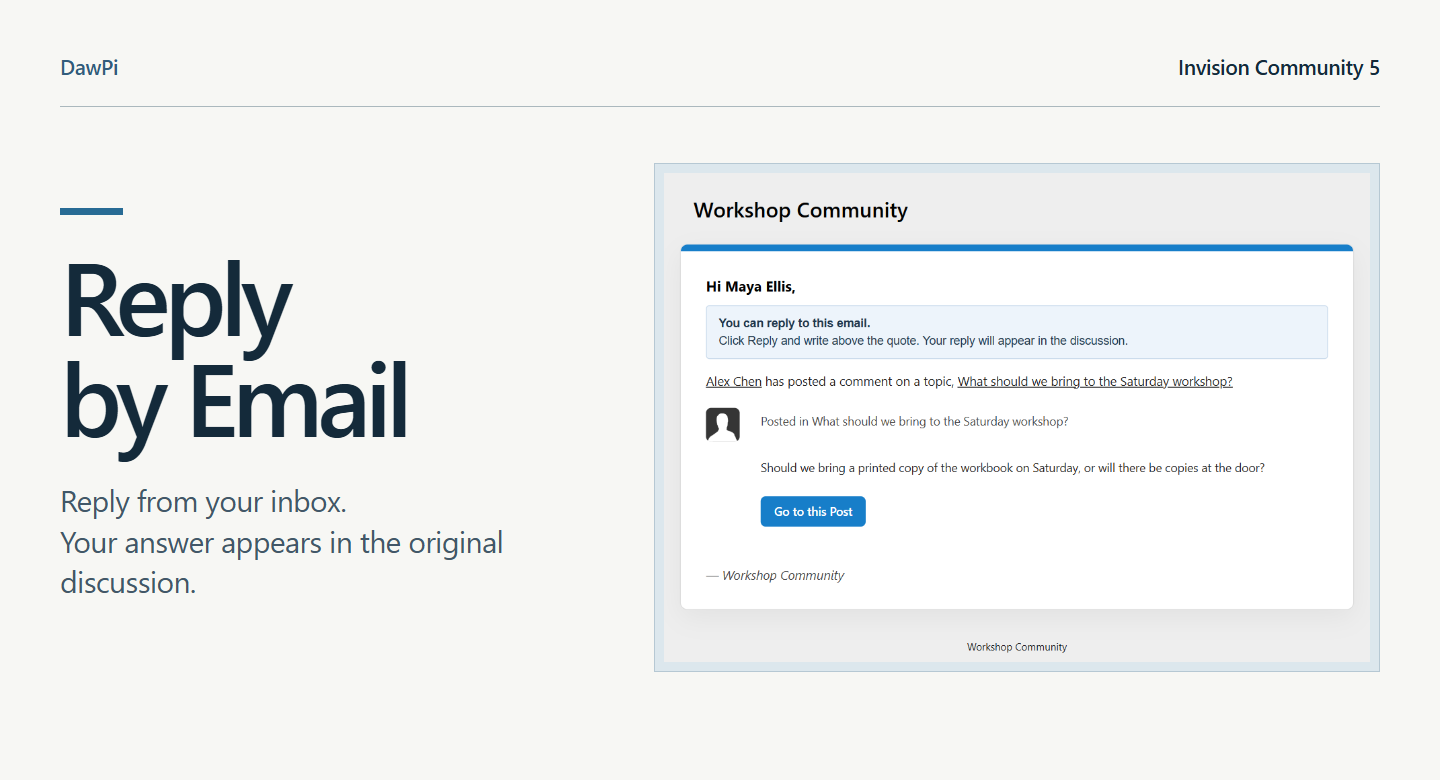
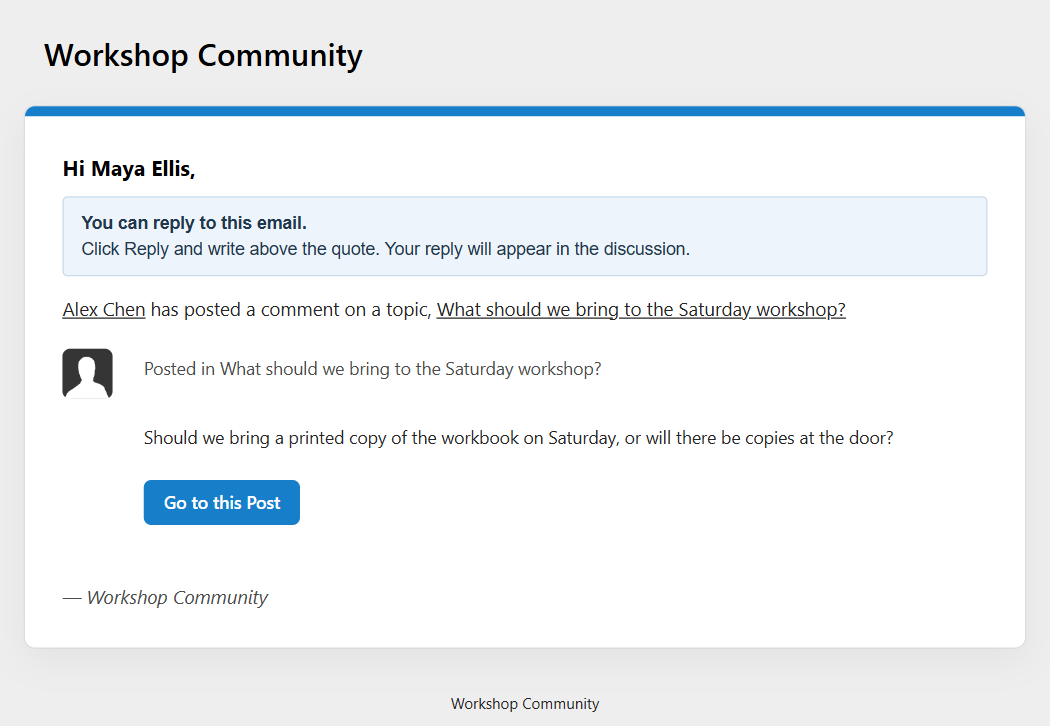
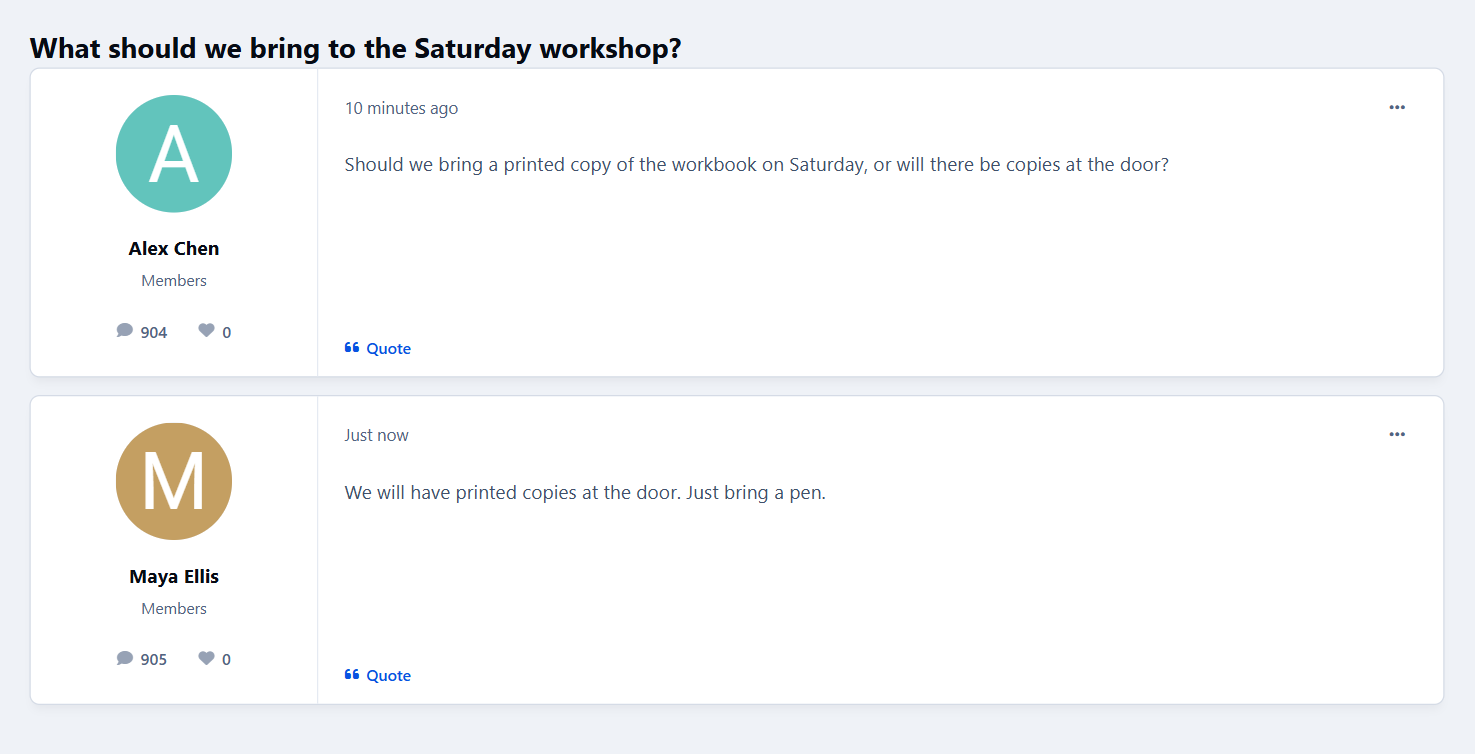
Give someone a way to answer while you have their attention. With Reply by Email for Invision Community 5, a member can read a notification on their phone, type a reply and get on with their day. Back on the site, their words appear under their own name, right where the conversation started.
Attachments are part of the conversation. A member can email a photo to a gallery discussion, send a corrected PDF in a private message or attach a screenshot to a forum reply. The file stays with the post or message it belongs to. Private attachments are available to the participants, and your community's file types, size limits and upload permissions apply.
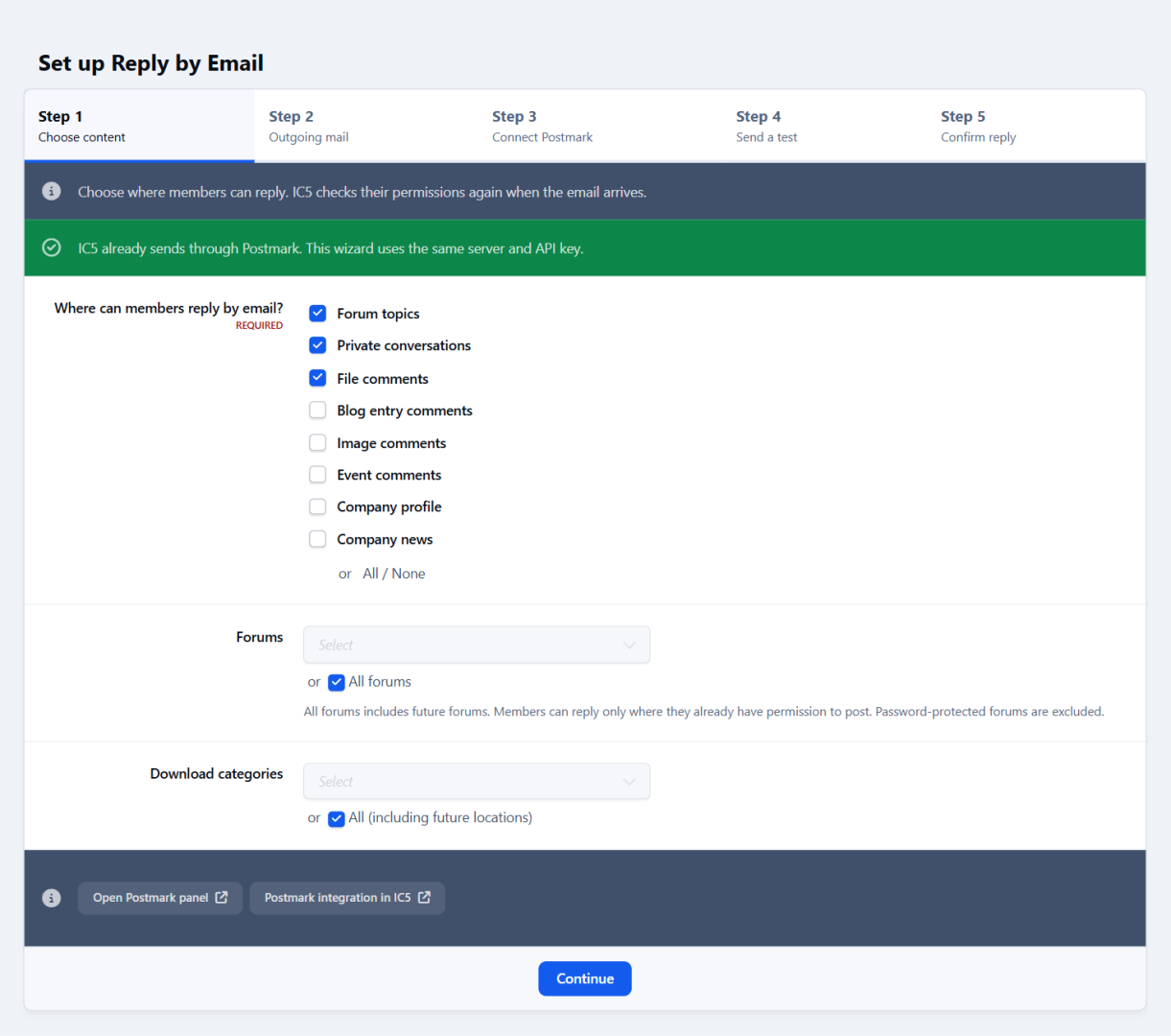
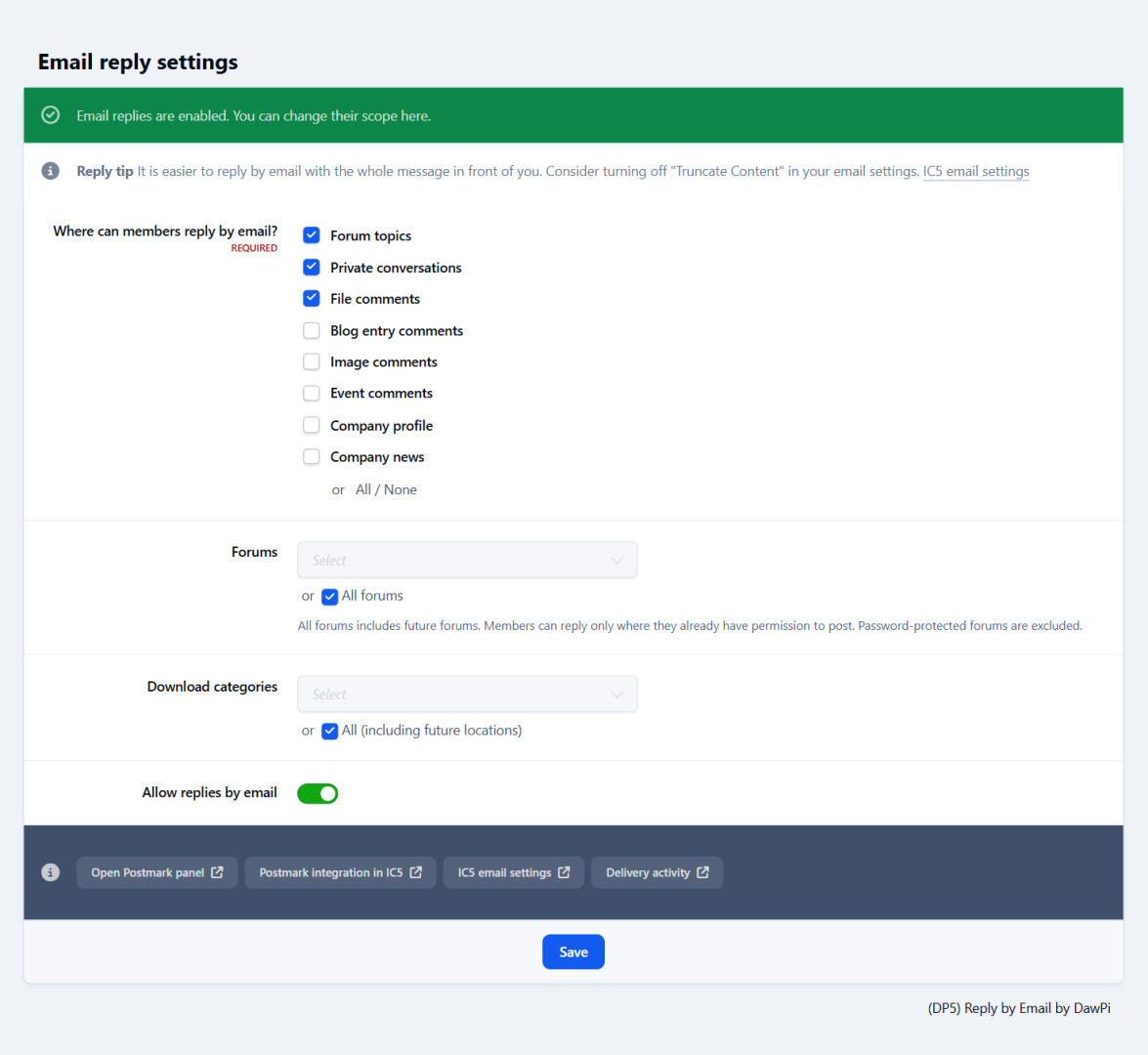
Choose where people can write back. Start with a single forum or open up replies across Downloads, Blogs, Gallery and Calendar. Members can answer private messages by email, too. Pick individual locations or choose All to include future ones. Compatible third-party apps appear alongside the built-in options.
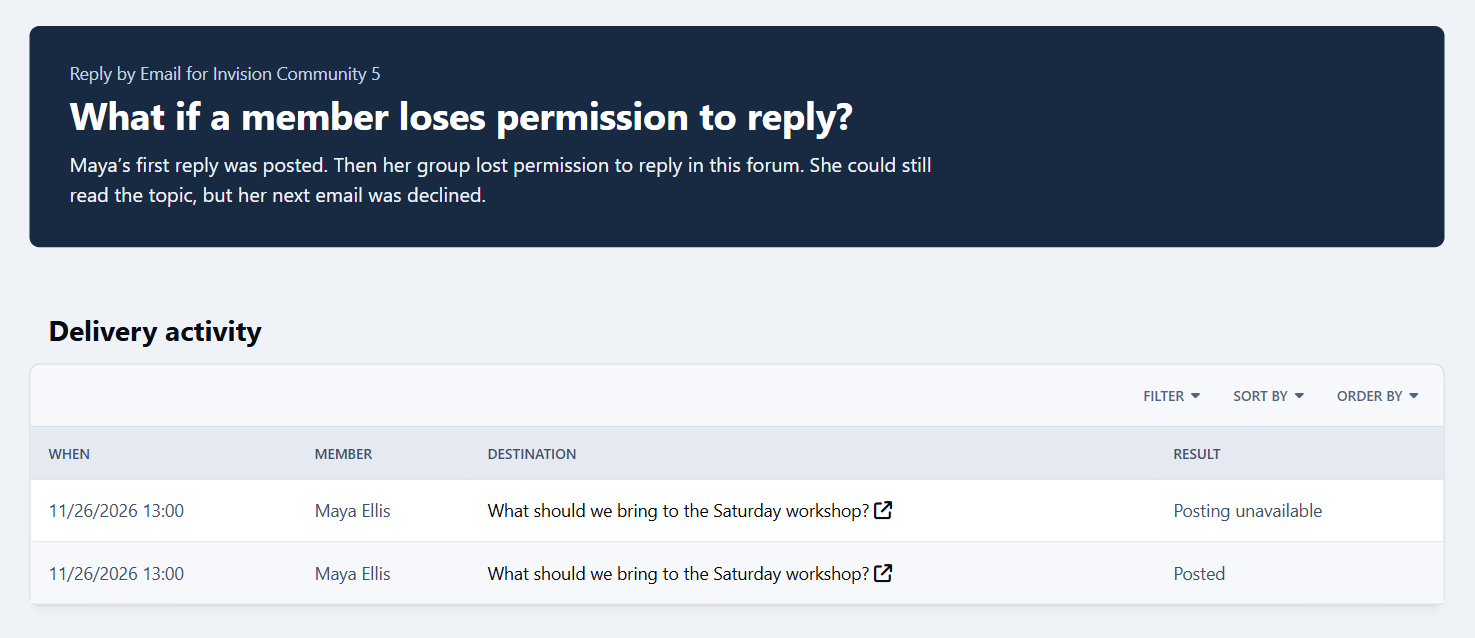
Your moderators keep the final say. IC5 checks the member's current permissions when the email arrives and sends replies that need approval through the usual moderation queue. Members can write above or below the quote. If the app can't tell which words are theirs, they get a link to finish the reply on the site.
Set it up and try it yourself
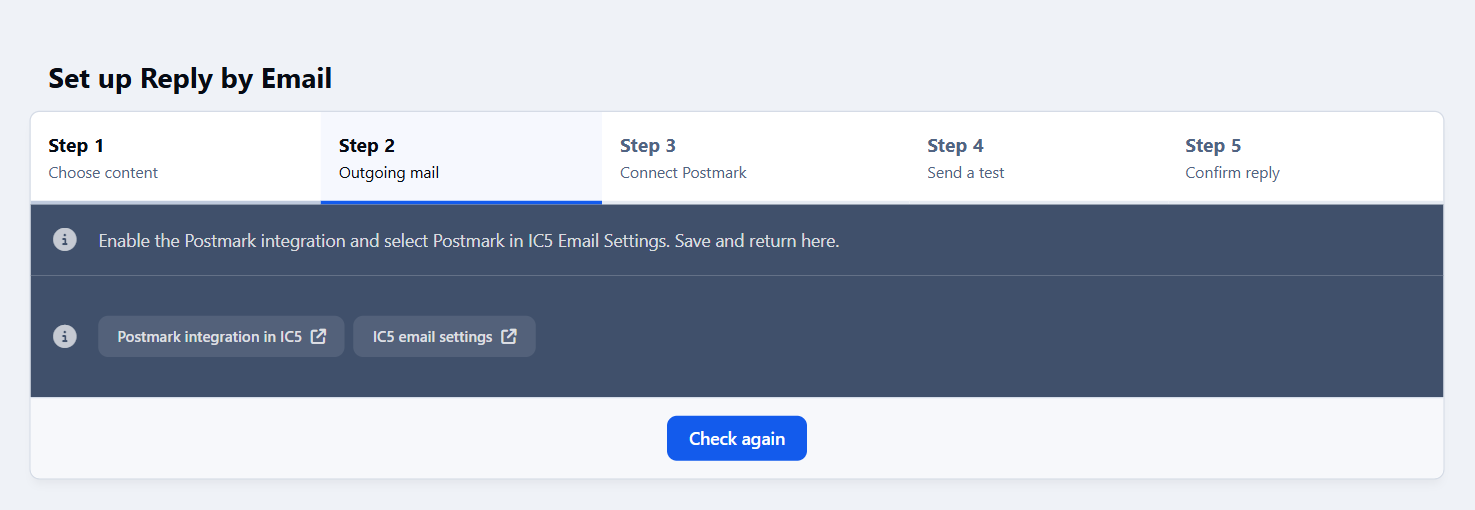
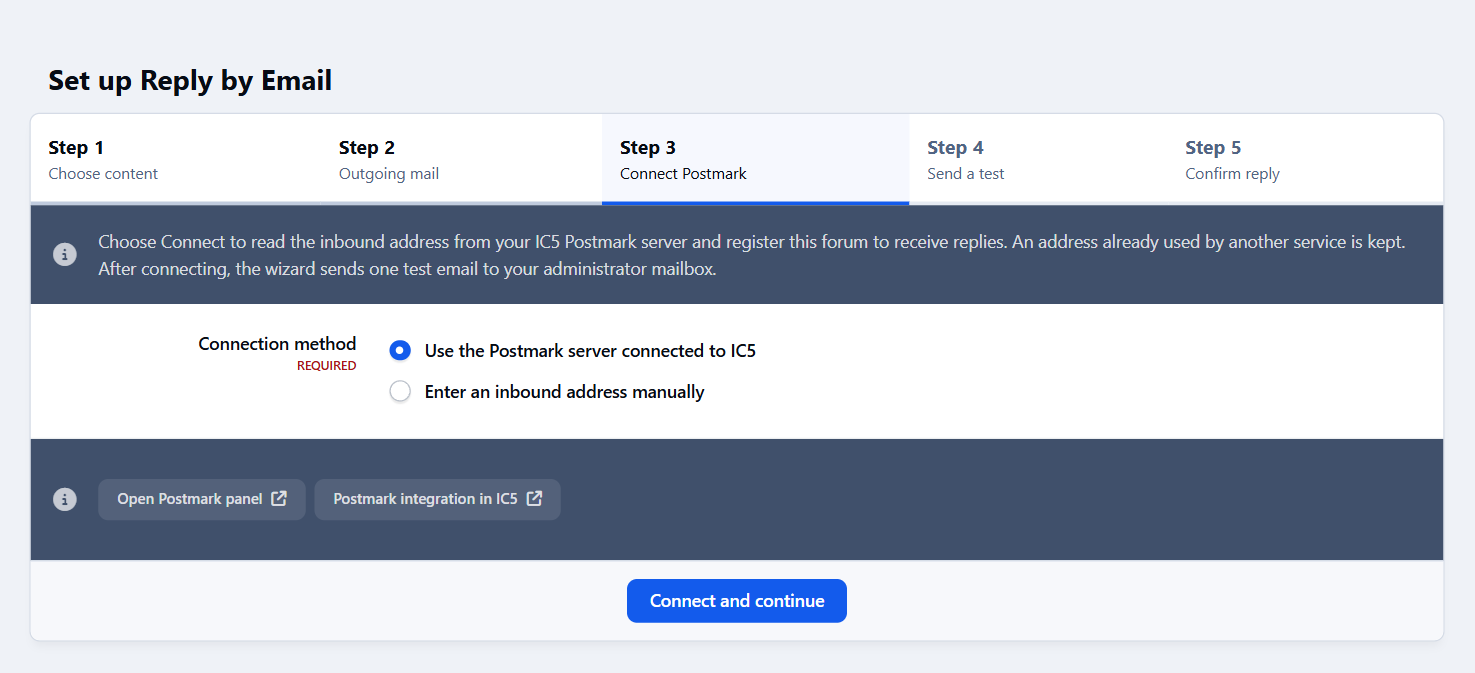
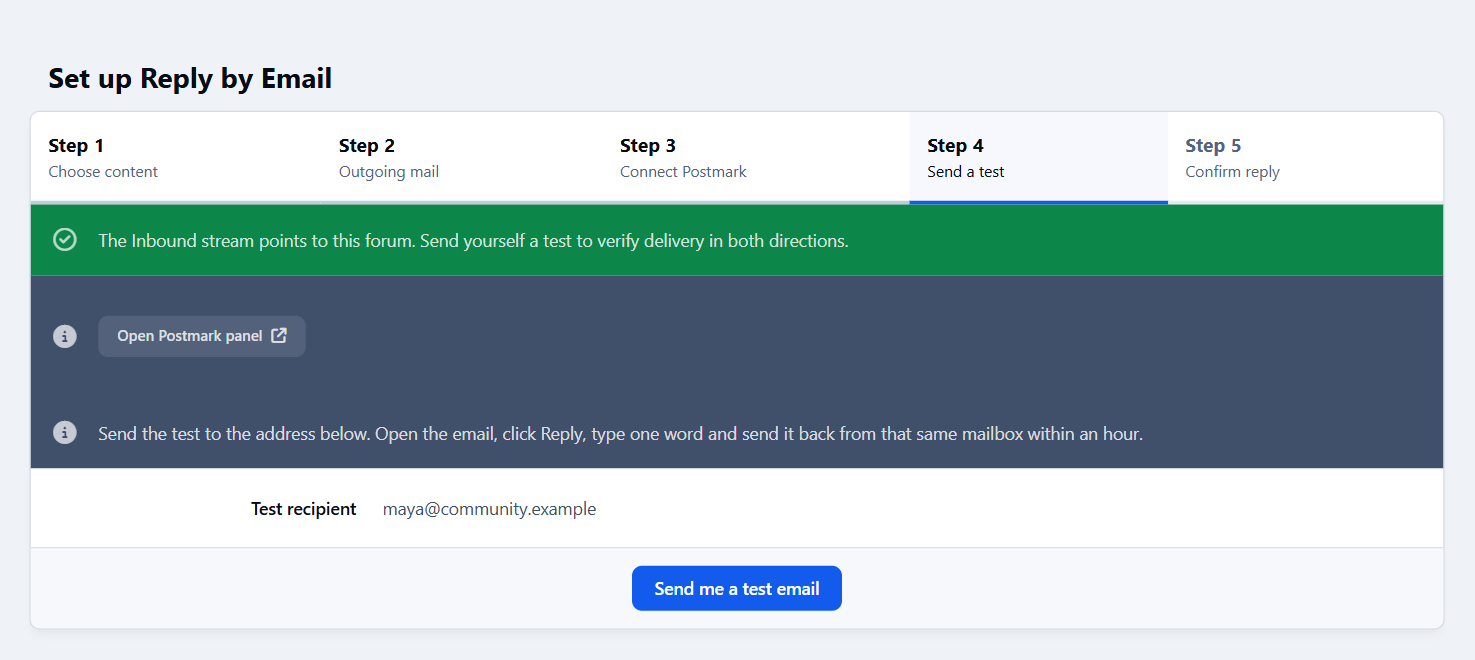
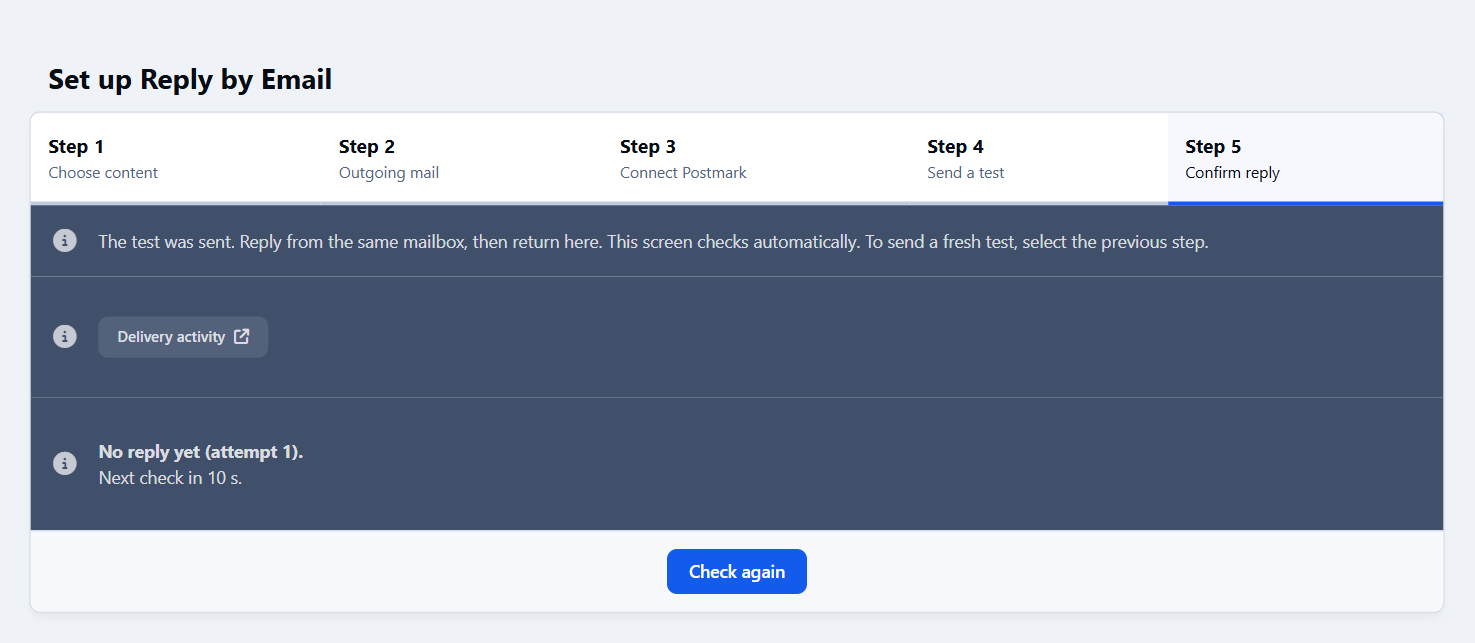
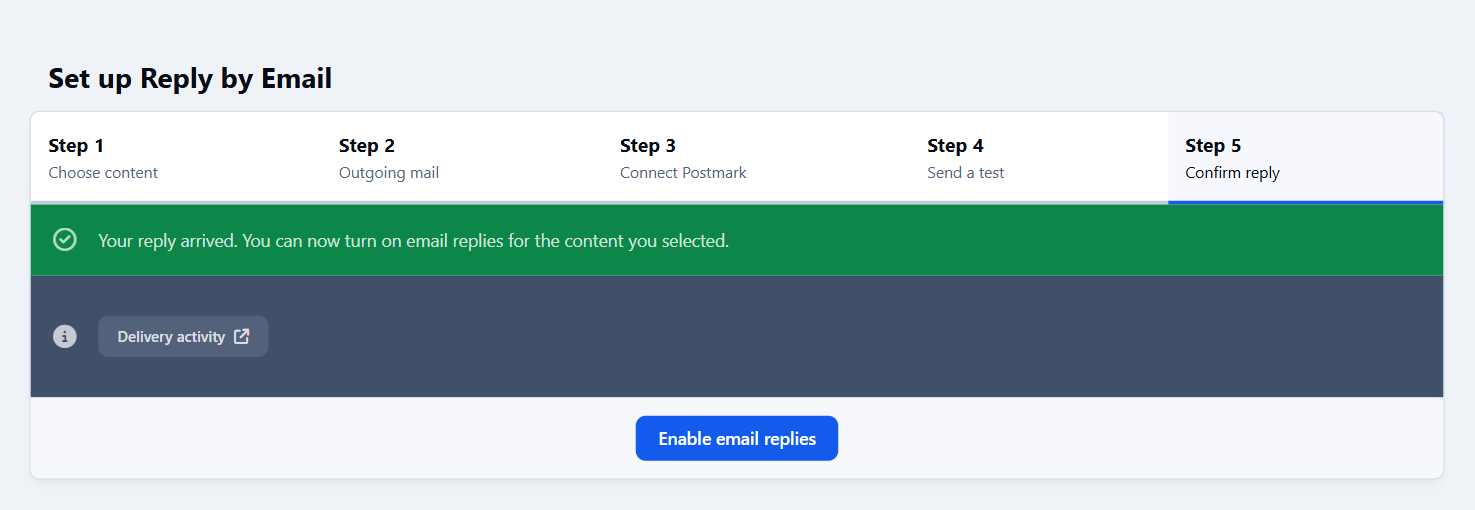
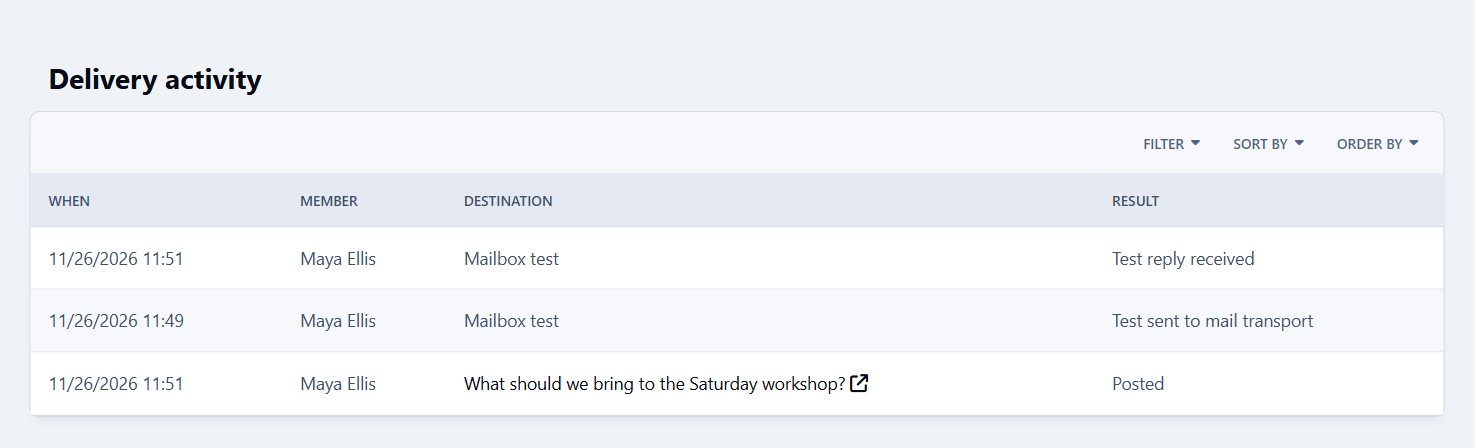
The AdminCP wizard connects to your Postmark server and sends you a test email. Reply from your own mailbox and watch for confirmation in the wizard. Once you enable replies, Delivery activity shows what was posted and what needs attention.
Requirements
Requires Postmark for outgoing and incoming mail and a publicly reachable HTTPS community.
Możesz dodać swoją opinię tylko jeśli pobrałeś plik.
Brak opinii do wyświetlenia.